Send the policy, get it confirmed
Send policies to the people they apply to, with a deadline for each person. Reminders, new joiners and overdue follow-up run on their own, and every confirmation is recorded with the version and the time.
One person or the whole organization, once a year or with every change. You see who has confirmed, who has not, and can prove it whenever someone asks.
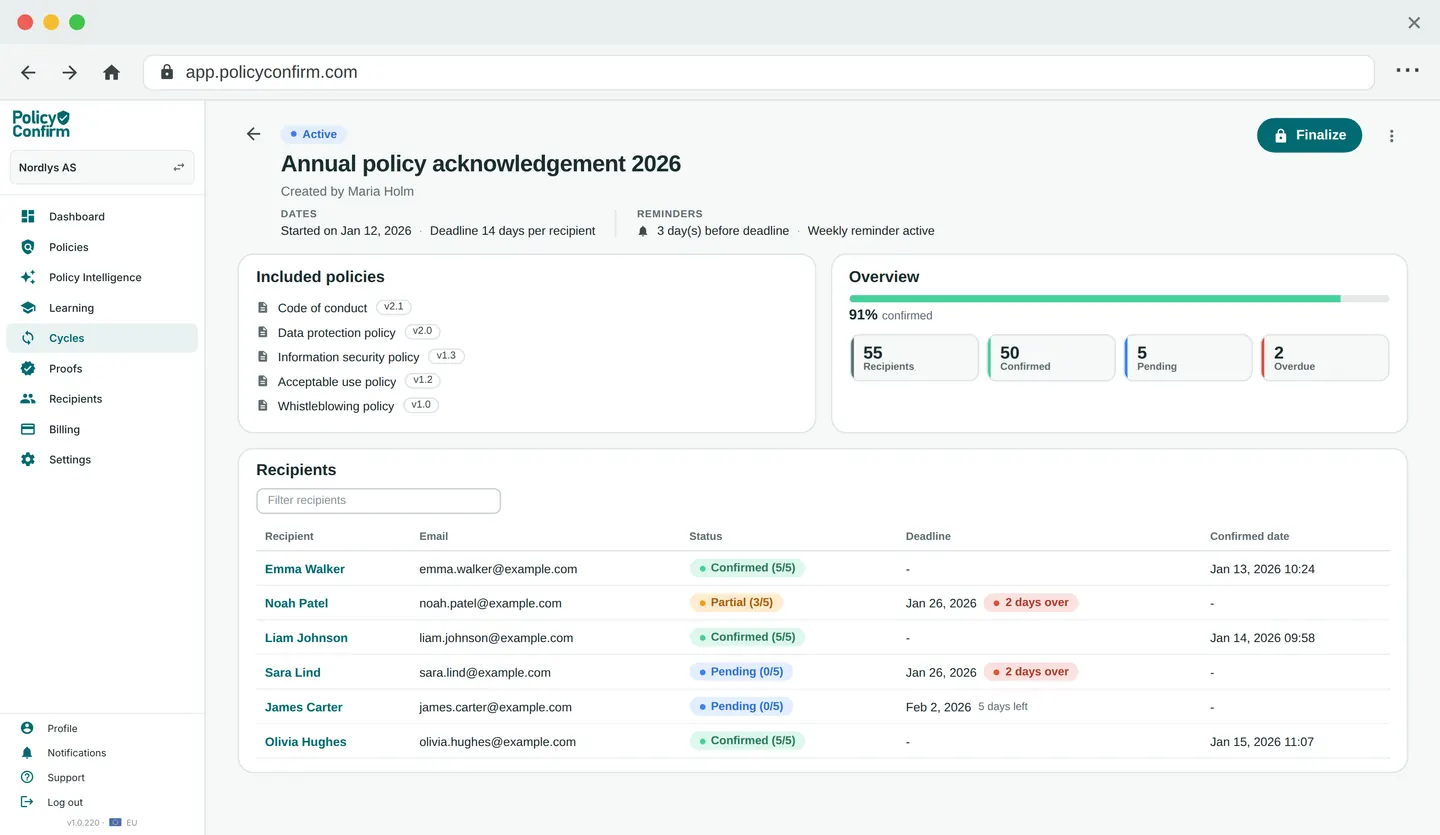
Send it to the right people
A cycle is one round of sending: the policies, the people, the deadline and the reminders. Set it up once, and the parts that repeat take care of themselves.
Flexible cycles
Send several policies in one round, leave out people or groups, or skip those who already confirmed within the months you choose.
Drafts and scheduled send
Save a cycle as a draft, or schedule it to go out on a date and time you pick.
Bulk import and group targeting
Import recipients from CSV, Excel or Microsoft Entra ID, group them by role, department or location, and send each policy to the groups it applies to.
Coverage on autopilot
New joiners are added to running cycles automatically, everyone gets their own deadline counted from the day they were added, and reminders and overdue follow-up go out on their own.
What your people get
One email with a personal link, and a page with the policies to read and confirm. Each policy has to be opened before it can be confirmed.
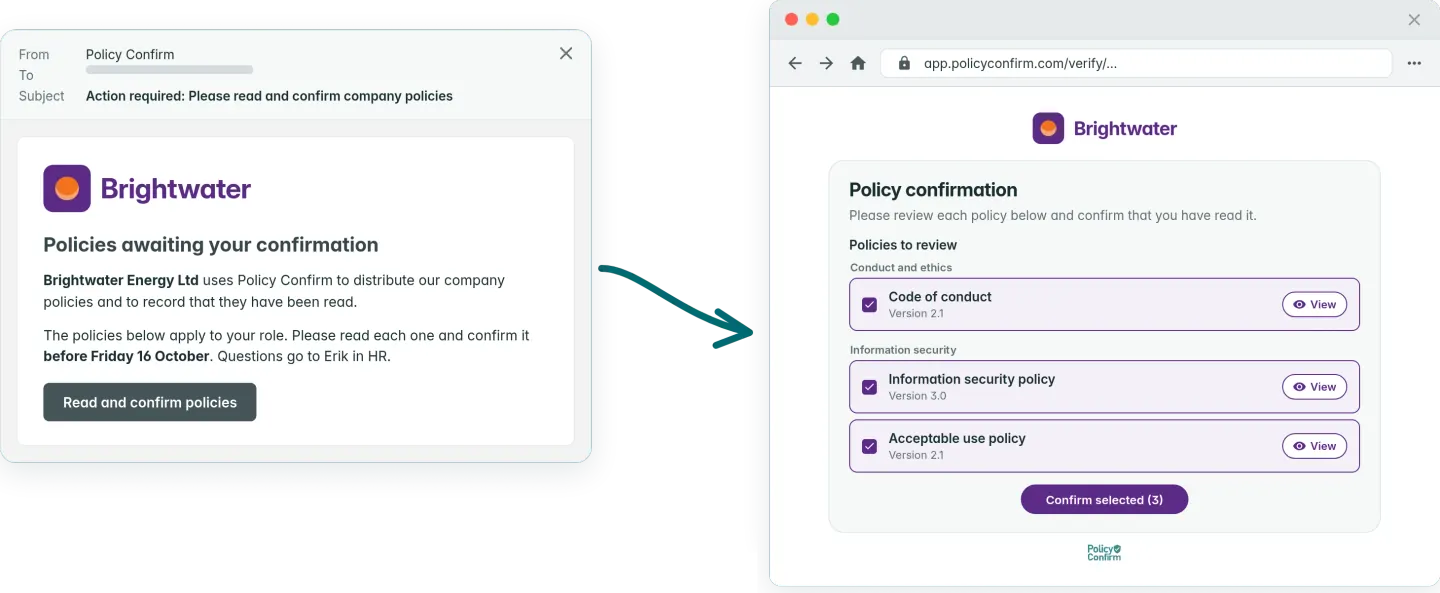
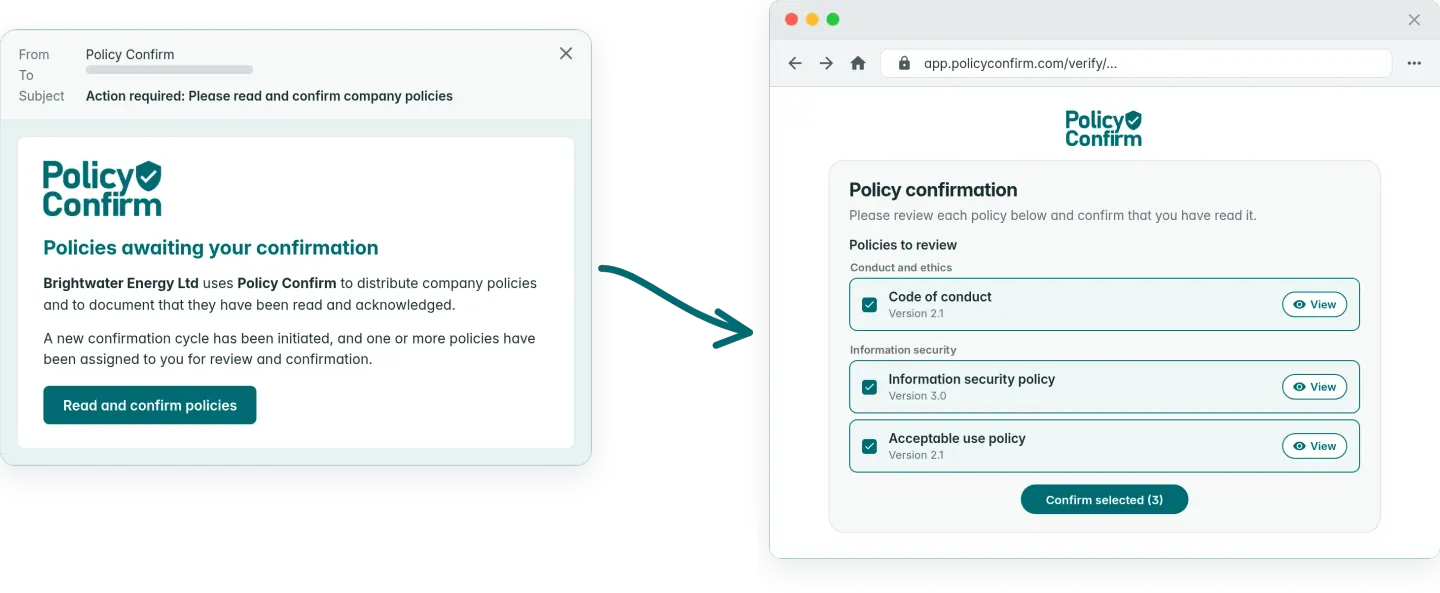
With your own logo, message and color. Drag the handle to compare.
With Force Microsoft SSO on, recipients sign in with their work account only. Otherwise they can choose an email code instead.
Magic link or Microsoft sign-in
Each person gets their own secure link by email. No account and no password: a one-time code, or their Microsoft work account. With Force Microsoft SSO on, Microsoft is the only way in, with no email code.
Your branding
Your logo, message and color on the email and on the page where people read and confirm, so it reads as yours and not a vendor's.
Microsoft Teams and Slack
When a cycle goes out, a message with the deadline and a link to the portal can land in the channels you choose.
When a click is not enough
Some policies need more than a tick in a box. Add a short quiz to check it was understood, ask for a signature when a more formal acknowledgement is needed, or send a short course with the policies.
Follow up without chasing
Every person in a cycle has their own deadline and status. Those past it are marked overdue, and the reminders you chose go out on their own.
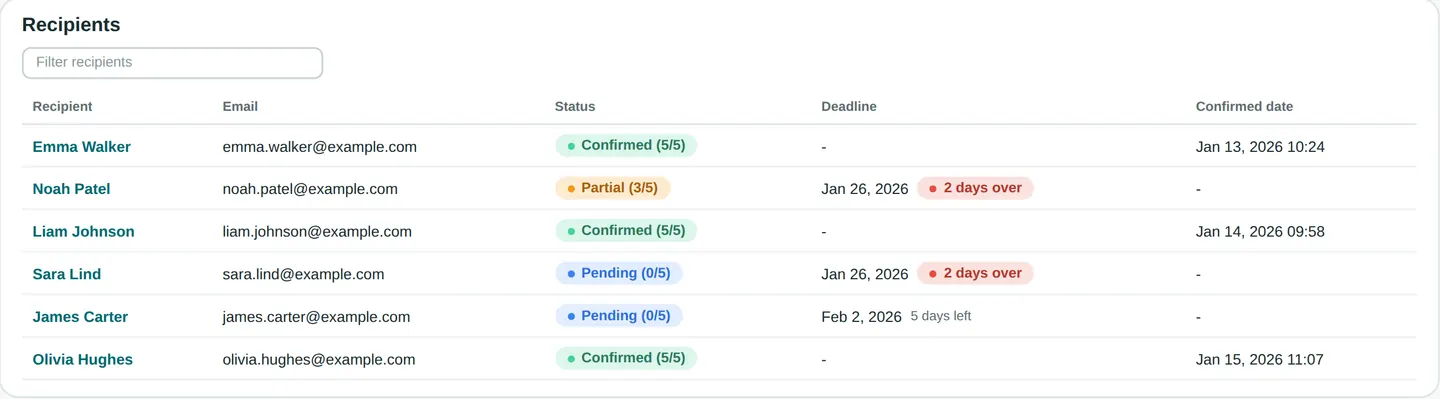
Managers follow up their own people
Make a manager the supervisor of the groups they are responsible for. When a cycle starts, they get an email with a link to a status page with only their people: who has confirmed, who is still pending, and each person's deadline.
A supervisor who also has policies to confirm uses the same link. Their own confirmation and the status of their team sit side by side as two tabs, so there is nothing extra to find.
One place for everyone, later
The policy portal gives each person one page with what is waiting for them and every policy that applies to them, long after the email is gone.
Proof whenever someone asks
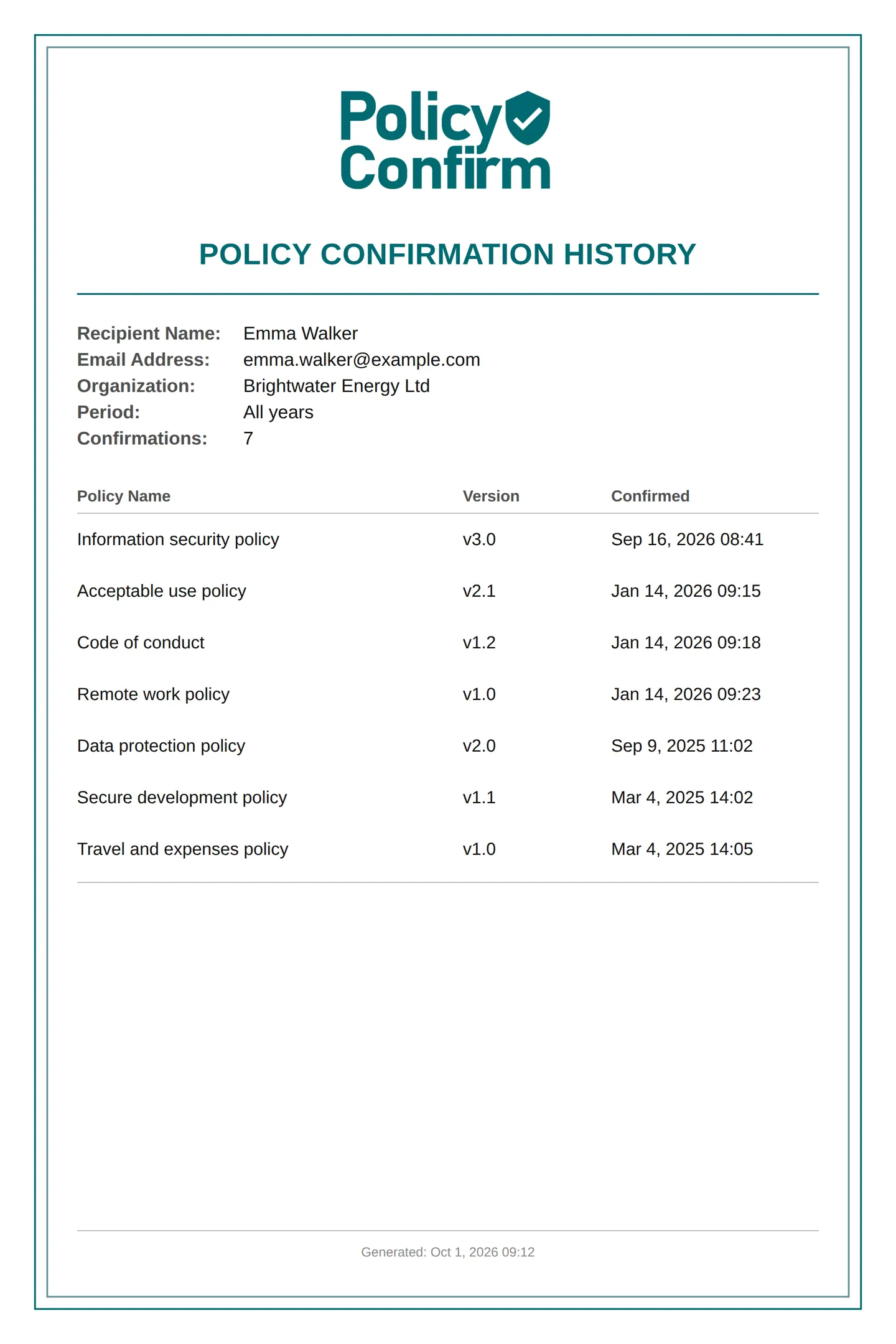
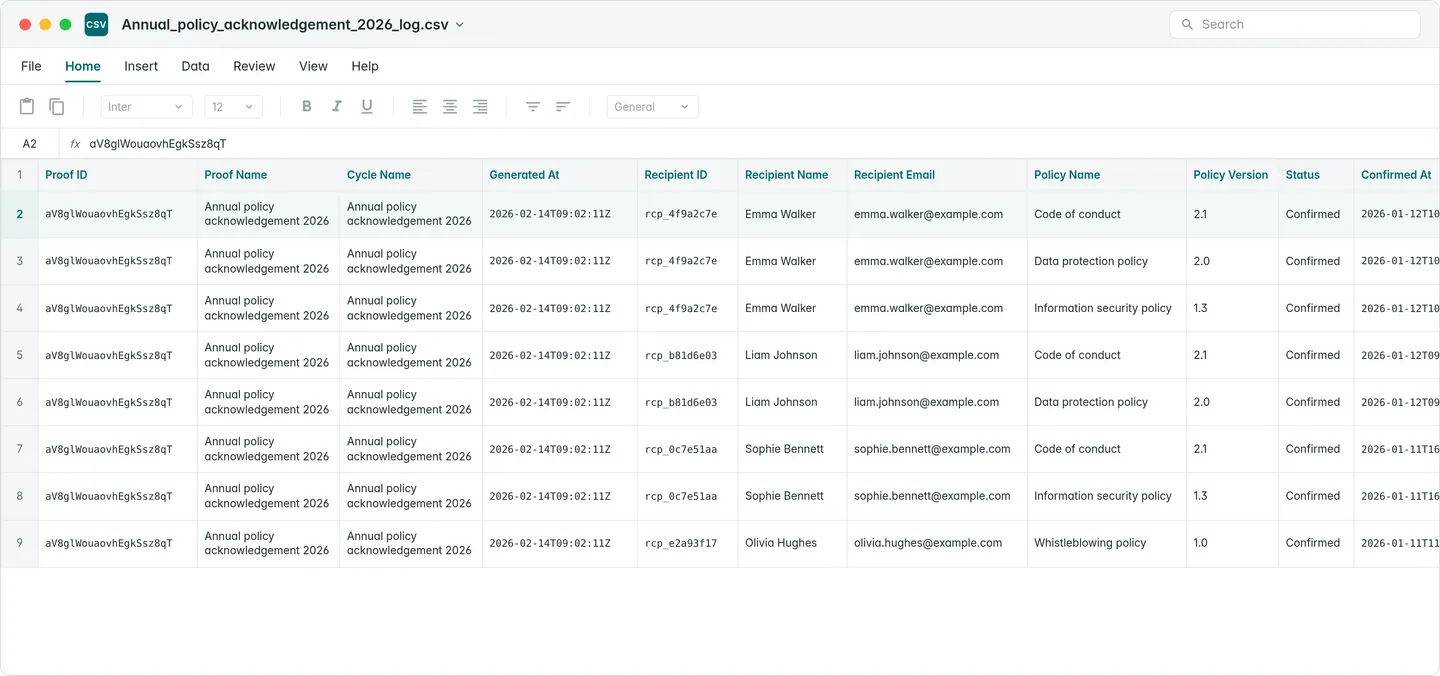
Every confirmation is recorded with the person, the policy, the version and the time. Open any person to see every policy they have confirmed, or the status across the whole organization, and export it as a PDF confirmation history or a CSV or Excel file.
Comparing tools? Read how to choose policy acknowledgement software, with the questions to ask and how it differs from SharePoint, Excel, HR systems and e-signature tools.
Frequently asked questions
How do we send a policy to employees in Policy Confirm?
Start a cycle: pick the policies, the groups or people they go to, the deadline per person and the reminders. Everyone gets their own email with a personal link, reads each policy and confirms it. You follow progress on the cycle and keep the record afterwards.
Do employees need an account to confirm a policy?
No. They open the personal link in the email and verify with a one-time code sent to their email address, or with their Microsoft work account if your organization uses single sign-on. There is no password to remember. With Force Microsoft SSO on, recipients can only sign in with Microsoft, and no email code is offered.
What happens with people who join after the cycle started?
With Include new recipients automatically on, people added to a group in the cycle get the same request, with their own deadline counted from the day they were added.
How are reminders sent?
You choose in the cycle settings: a reminder a number of days before each person's deadline, an email when the deadline has passed, and a weekly reminder. Overdue people are marked in the cycle so you see who to follow up.
Can managers follow up their own teams?
Yes. Assign supervisors to the groups they oversee. Supervisors get an email when a cycle starts and a status page that shows only their groups, so they can follow up their own people. A supervisor who also confirms policies sees it as a second tab, Supervisor status, on the same page.
Can we require more than a click?
Yes. A cycle can include quiz questions that must be answered correctly before confirming, and an electronic signature when a more formal acknowledgement is needed.
Can we send a course with the policies?
Yes, with the Learning add-on. When you start a cycle, tick the courses to send with the policies. Each person gets the courses tied to their groups, alongside the policies, and the emails, reminders and proofs stay the same.
What proof do we get?
Every confirmation is recorded with the person, the policy, the version and the time. Open any person to see every policy they have confirmed, or see the status across the organization, and export it as a PDF confirmation history or a CSV or Excel file.
Send your first cycle today
Free for up to 10 recipients. Add a policy, add your people, and send it with a deadline and reminders in a few minutes.