Every policy in one place, always current
One list of all your policies, with their versions, categories, review dates and the people they apply to. The document can live in Policy Confirm, in SharePoint or anywhere else.
Write it, have it approved, and know which version is current, without a folder of files called final_v3.
The policy wherever it lives
Upload a PDF, link to SharePoint or the intranet, write it in the policy editor, or say where the policy is kept. Every change becomes a new version with its number, date and who added it, and recipients always open the current one.
Each policy carries its effective date, validity period, category, the groups it applies to and a description recipients see when they confirm.
Sort a long list into categories you name
Conduct and ethics, information security, data protection, or whatever fits your policies. Drag them into the order you want, put each policy in one, and work with one part of the list at a time. Chips above the list show how many policies each holds, and the list can be grouped by category.
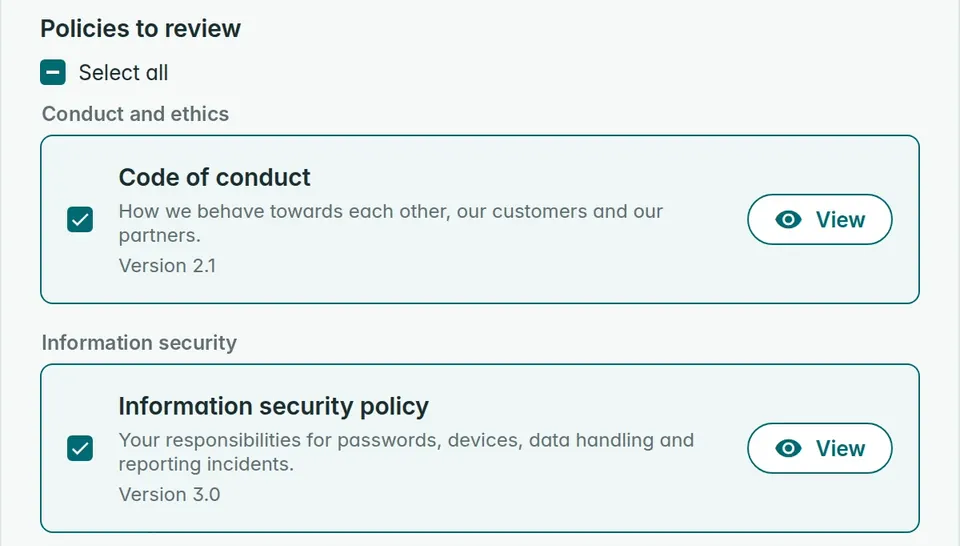
Recipients can see the same headings in the policy portal and on the page where they read and confirm. Many categories at once? Import them from an Excel or CSV file.
Policies to read, not to confirm
Not every policy needs a confirmation. The travel policy, the style guide and the company car rules are worth having in one place without asking anyone to confirm them.
An optional policy shows under Additional company policies, in the policy portal and on the page where people confirm. It is never part of a cycle.
Write it and get it approved
Two steps before a policy goes out, each with a page of its own.
Policy editor
Write and update the policy right in Policy Confirm, with your logo, headings, tables and a version history, or paste from Word. Use for policy makes it the next version.
More about the policy editorPolicy approvals
Send finished policies to an approver before they go live. They review each version and approve or reject it, need no account, and every decision is kept.
More about policy approvalsKeep a long list in order
Fifty policies are easy to lose track of. Review dates, comments and bulk upload keep each one where it should be.
Expiry and review dates
Give each policy a validity period in months from its effective date. The dashboard flags policies 90 days before they expire, so reviews do not slip. Recipients never see it.
Bulk upload and export
Create many policies at once from an Excel or CSV file, checked row by row before anything is created, and export the list when you need it elsewhere.
Next step
Send it to the right people and get it confirmed
Cycles, deadlines per person, reminders and the proof afterwards.
Frequently asked questions
What does policy management cover in Policy Confirm?
One list of every policy in the organization, each with its versions, effective date, validity period, category and the groups it applies to. From there you write or update the document, have it approved if you want to, and send it to the people it applies to.
Do our policies have to be stored in Policy Confirm?
No. A policy can be an uploaded PDF, a document written in the policy editor, a link to SharePoint or the intranet, or a note of where it is kept. Each version is tracked the same way whichever you choose.
How are policy versions tracked?
Every document you add becomes a version with its number, the date and who added it, and the current one is marked. Recipients always open the current version, and confirmations record which version each person confirmed.
Can we track when a policy is due for review?
Yes. Give the policy a validity period in months, and its expiry date follows from the effective date. The dashboard flags policies 90 days before they expire. The validity period does not change cycles, deadlines or confirmations.
Can we sort policies into categories?
Yes. Name your categories, such as conduct and ethics, information security or data protection, and put each policy in one. The list shows chips per category and can be grouped by category, and recipients can see the same headings in the policy portal and on the confirmation page.
Can we add many policies at once?
Yes. Bulk upload creates policies from an Excel or CSV file with their name, description, version, effective date and validity period. You check every row before anything is created.
Bring your policies into one place
Free for up to 10 recipients. Add your policies one by one or from a spreadsheet, and keep the documents where they are today if you like.
Comments for collaboration
Administrators work on a policy together, with comments on the policy itself: the renewal, the open question, the change legal asked for. Nothing gets lost in an email thread, and recipients never see them.